Devana IFrame Integration Documentation
Welcome to the Devana IFrame Integration Documentation. This guide will walk you through the process of integrating Devana's powerful AI capabilities into your web application using an IFrame.
Devana is a cutting-edge AI platform that allows you to create intelligent agents and seamlessly embed them into your applications. By following this documentation, you will be able to harness the power of Devana's AI to enhance your user experience and provide advanced features like real-time assistance, personalized recommendations, and more.
Prerequisites
Before getting started, ensure that you have the following:
- An active account on Devana. If you don't have one, visit the website and sign up for an account.
- An API account. This is necessary to access and interact with Devana's APIs. If you don't have an API account, navigate to the API account section on the Devana website and create one.
Step-by-Step Integration
Follow these steps to integrate Devana into your web application using an IFrame:
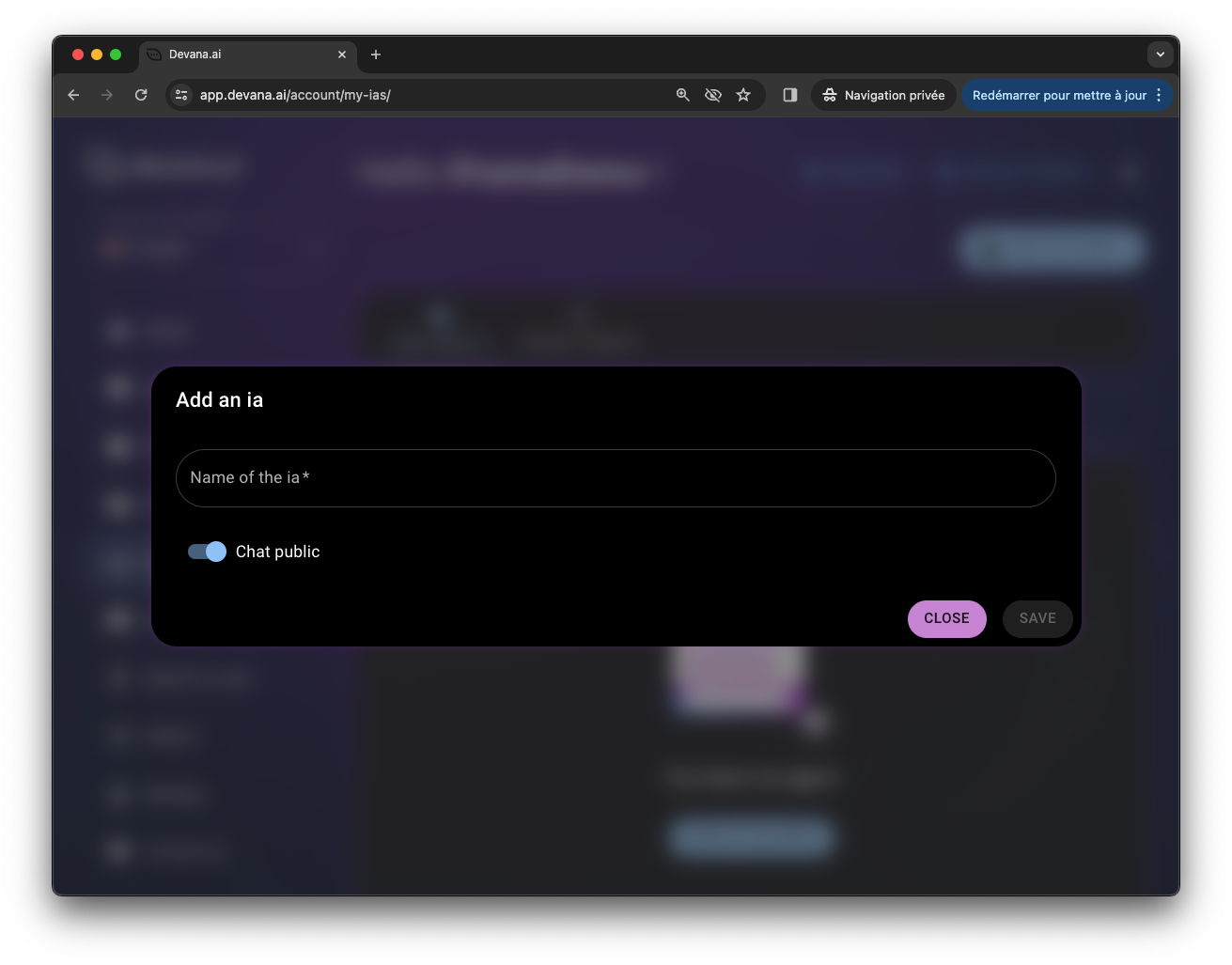
Step 1: Create a Public Agent
- Log in to your Devana account.
- Create a new agent using the Devana interface.
- Configure the agent according to your requirements.
- Make the agent public. This will allow it to be accessed via the IFrame.
Step 2: Retrieve the Agent Link
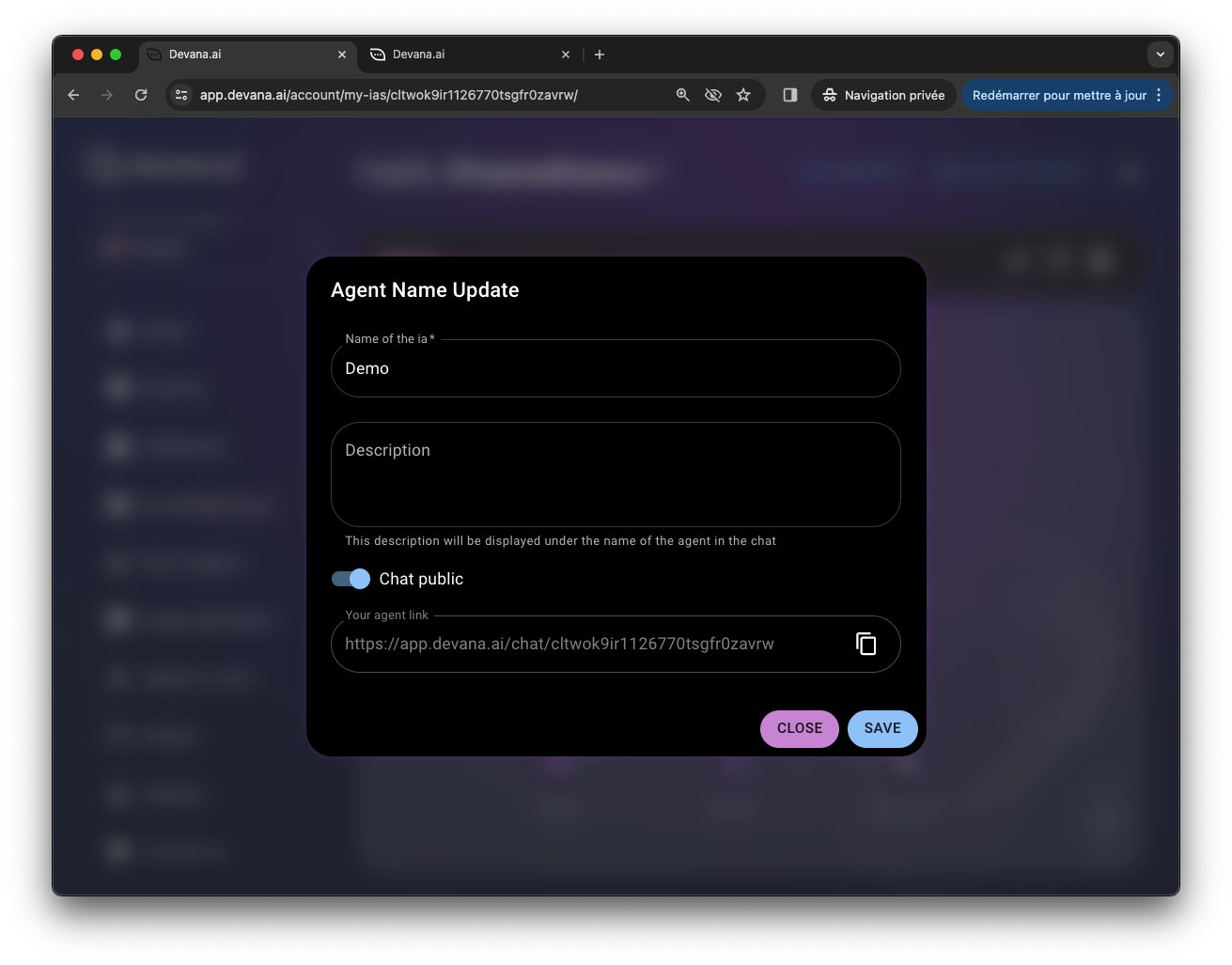
- Once your public agent is set up, navigate to the agent's settings.
- Copy the agent's unique link. You will use this link to connect the agent to your website.
Step 3: Embed the Agent Link in an IFrame
- In your web application's HTML code, add an IFrame element.
- Set the
srcattribute of the IFrame to the agent's link you retrieved in the previous step. - Specify the desired width and height of the IFrame to fit your application's layout.
Here's an example of how to embed the IFrame:
<iframe src="https://app.devana.ai/chat/{ID}/" width="500" height="600"></iframe>
Remember to replace {ID} with your agent's unique ID.
Step 4: Customize the Integration (Optional)
Devana offers advanced customization options to enhance the integration experience. Some of the key features include:
- Query Metadata: Attach metadata to your chats to track and analyze user interactions in detail. Append
metadata={JSON}to the IFrame URL, replacing{JSON}with stringified JSON data. - Preprompt: Set an additional context for the AI using the
preprompt={TEXT}query parameter. Replace{TEXT}with the desired context or initial message.
Refer to the "Advanced Usage" section in the README for more details on these features.
Example: Devana IFrame as a Chatbot
One common use case for Devana's IFrame integration is to embed it as a chatbot that opens in the corner of your application when a button is clicked. This provides users with instant access to an AI assistant for support or guidance.
To implement this, follow the steps outlined in the "Devana IFrame as a Chatbot Integration Guide" section. It includes the necessary HTML, CSS, and JavaScript code snippets to create a functional chatbot.
Support and Feedback
If you encounter any issues during the integration process or have any questions, please refer to the documentation or reach out to our support team at support-it@devana.ai. We are here to assist you and ensure a smooth integration experience.
We value your feedback and are continuously working to improve Devana's capabilities. If you have any suggestions or feature requests, please let us know.
Happy integrating with Devana!